Starter Hut shows the time when a player hits the turn or finishes their round
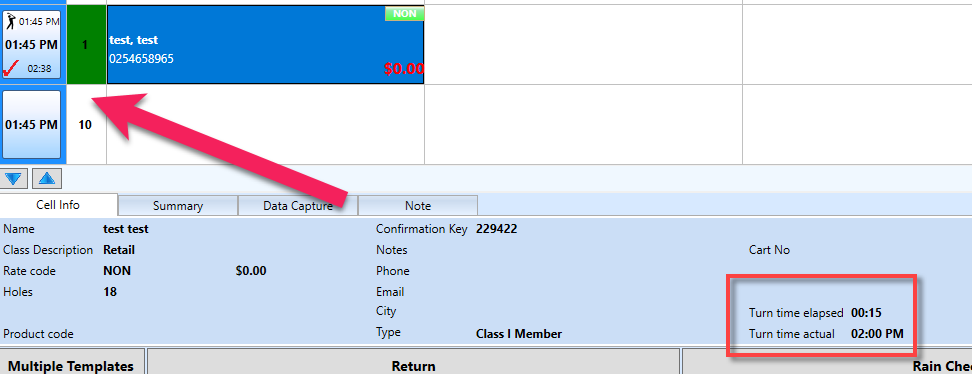
In the 3.100 release, we added the turn time and the finish time information to the pane at the bottom for the historical information when the turn is replaced with the end time on the left side where the time is. You can see the turn time and the finish time in the Starter Hut tee sheet to know what time someone crossovers or finishes their round of golf.
For example, if someone started at 6:50 am and hit the turn, then finished at 2:10 pm. You can see that 2:10 pm and that they hit the turn at 9:00 am, which is the start time plus the duration to hit the turn.
To enable the turn-time feature
-
Go to Starter Hut.
-
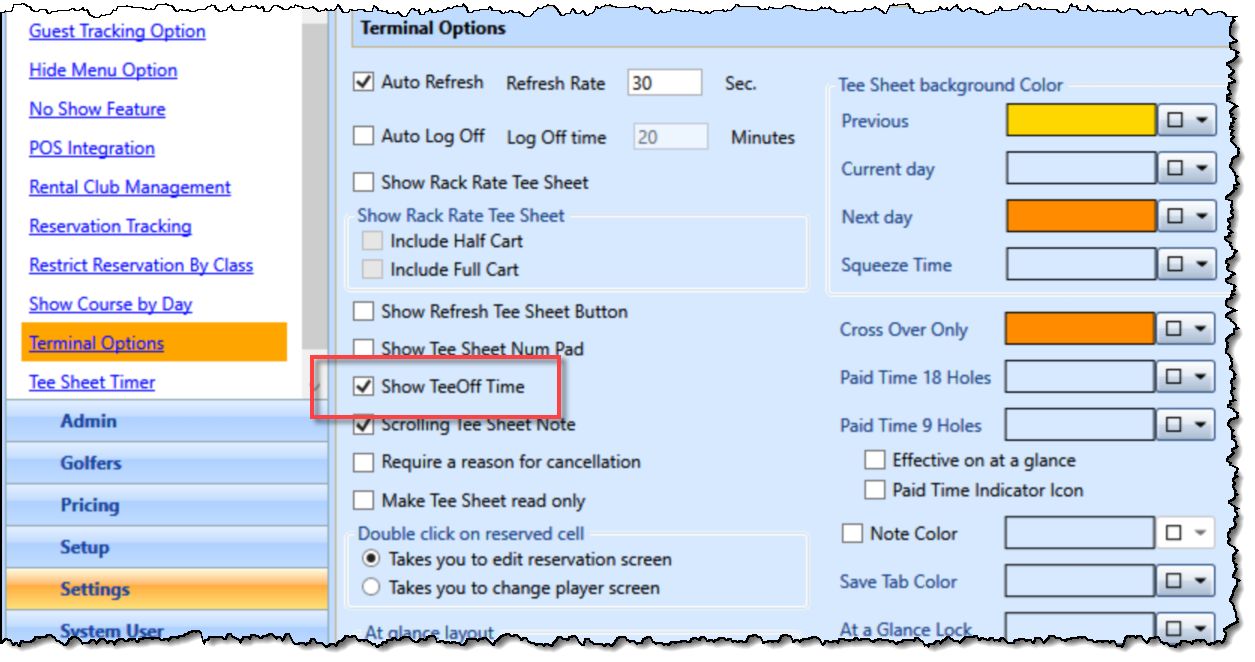
Select Admin | Settings | Terminal Options.
-
Select the Show TeeOff Time checkbox to turn the turn-time feature on.
-
Scroll to the bottom of the screen and select Save. The turn-time and finish time will now display in the row header when set in the steps below.
To set and see the turn-time
-
Go to Starter Hut.
-
Select the checked-in tee time.
-
Set the tee-off time:
-
Right-click the tee time and select Tee’d Off. The Adjust Time pop-up displays.
-
Enter the start time using the down-arrow.
-
Select OK. The time displays in the Tee Time row-header with a highlight to its right.
-
Set the turn-time:
-
Right-click the tee time and select Turn Time. The Adjust Time pop-up displays.
-
Enter the start time using the down-arrow.
-
Select OK. The turn time displays in the Tee Time row-header with a new highlight to its right, below the elapsed time.
-
Set the finish time:
-
Right-click the tee time and select Finish Time. The Adjust Time pop-up displays.
-
Enter the start time using the down-arrow.
Select OK. A red check displays at the bottom in the Tee Time row header to the left of the elapsed time.
Shout out to Steve Saulsbery @cityoflafayette.com